

Automation is for developers. It requires coding skills. It’s complicated.
That’s what I thought until I built the first automation that saves me three hours every single week. It took ten minutes to build and zero lines of code.
Here’s the truth nobody tells you about automation tools: the barrier to entry isn’t technical skill anymore. It’s knowing which tool to use and understanding the basic workflow structure. Once you get that, building automations becomes as simple as connecting blocks in a flowchart.
Today you’ll learn how to build two YouTube automations using Make.com — one that sends Discord notifications when you upload videos, and another that logs every upload to a Google Sheet for tracking. Both take about ten minutes each to set up, and they’ll run automatically forever.
What You’ll Learn
- Why Make.com beats Zapier for most creators (50-70% cheaper)
- How to understand Make.com terminology without getting confused
- Step-by-step: YouTube to Discord notification automation
- Step-by-step: YouTube to Google Sheets content tracker
- Common mistakes that drain your free operations (and how to avoid them)
- Real pricing breakdown for scaling your automations
Why Make.com Over Zapier?
Before we build anything, let’s address the elephant in the room: why use Make.com when Zapier is the household name?
The answer is simple: cost and capability.
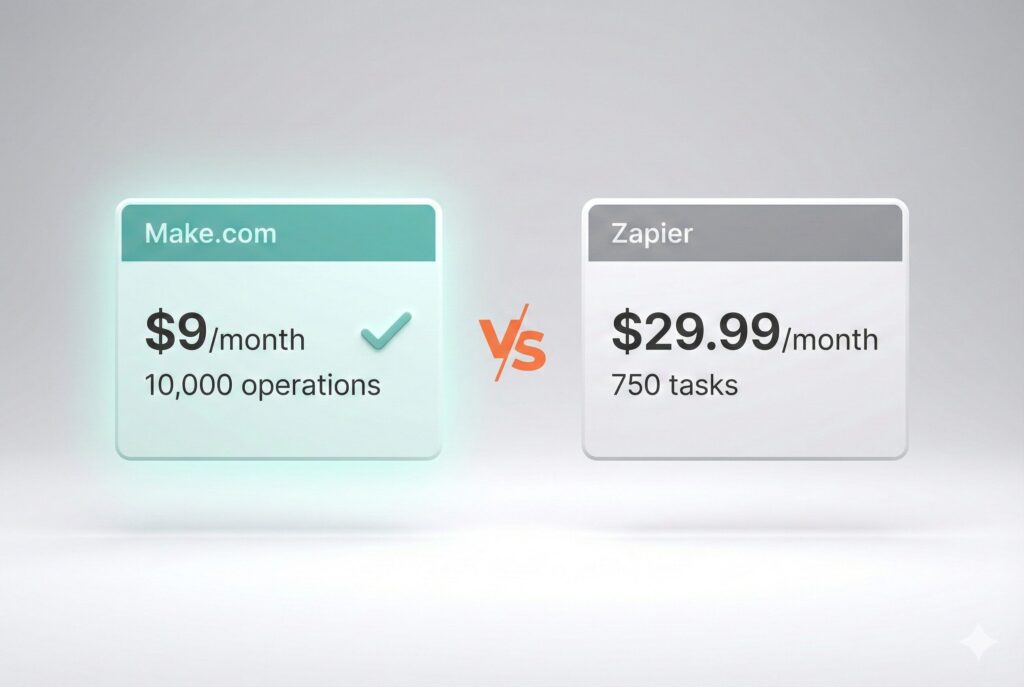
Make.com is fifty to seventy percent cheaper than Zapier for equivalent usage. The free tier gives you 1,000 operations per month, which is plenty for beginners. When you outgrow that, the Core plan costs just $9 per month for 10,000 operations.
Compare that to Zapier, where similar usage would cost you $15 to $30 per month. That difference adds up fast when you’re building a content business.
| Feature | Make.com | Zapier |
| Free Tier Operations | 1,000/month | 100/month |
| Starter Paid Plan | $9/month (10K ops) | $29.99/month (750 tasks) |
| Visual Workflow Builder | Yes | Limited |
| App Integrations | 1,500+ | 6,000+ |
Make.com also has a visual workflow builder that actually works well. You drag and drop modules to create automations, and you can see exactly what’s happening at each step. No coding required.
Pro Tip: Make.com’s visual builder shows you the data flowing between steps in real-time. This makes debugging infinitely easier than Zapier’s linear interface.
Understanding Make.com Terminology
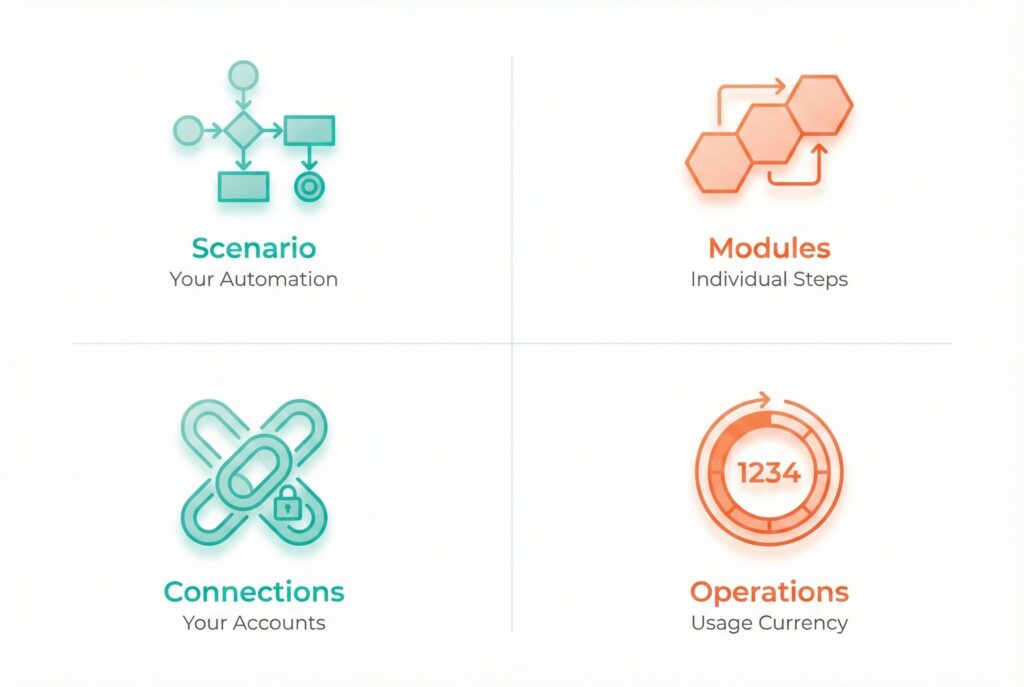
Before we build your first automation, let’s translate Make.com’s jargon into plain English. This takes two minutes to understand and saves hours of confusion later.
Scenarios = Your Automations
A scenario is simply an automation. It’s the thing you’re building. Think of it like a recipe — it has ingredients (modules) and steps (the workflow).
Modules = Individual Steps
Modules are the individual actions in your scenario. Each module does one thing — like “watch for new YouTube videos” or “send a Discord message.” You connect modules together to create your complete workflow.
Connections = Your Linked Accounts
When you connect your YouTube account or Google account to Make.com, that’s a connection. You only do this once per account, and then you can reuse the same connection across multiple scenarios.
Operations = Make.com’s Currency
This is the important one. Every time a module runs, it uses one operation. This is how Make.com measures usage and bills you.
On the free plan, you get 1,000 operations per month. A simple two-step automation uses two operations each time it runs. If it runs once per day, that’s about 60 operations per month. Plenty of headroom for beginners.
Automation 1: YouTube Upload → Discord Notification
Our first automation is perfect for beginners. When you upload a new YouTube video, Make.com will automatically send a notification to your Discord server.
This is useful for team communication, community engagement, or just keeping yourself organized. And it takes about ten minutes to build.
Step 1: Create a New Scenario
In Make.com, click the “Create a new scenario” button. You’ll see a blank canvas with a plus icon in the center. This is your automation workspace.
Step 2: Add Your Trigger

Click the plus icon and search for “YouTube.” Select “Watch Videos.” This module will monitor your channel for new uploads.
Now connect your YouTube account. Click “Add” next to the connection field and sign in with Google. Make.com will ask for permission to access your YouTube data. Accept it.
Once connected, select your channel from the dropdown. Under “Watch,” choose “New Videos Uploaded by the User.” This tells Make.com to trigger every time you upload a new video.
Step 3: Add Your Action
Click the plus icon that appears to the right of your YouTube module. Search for “Discord” and select “Send a Message.”
Connect your Discord account the same way — click Add, authorize Make.com. Then select which server and which channel you want the notification to go to.
Step 4: Map the Data
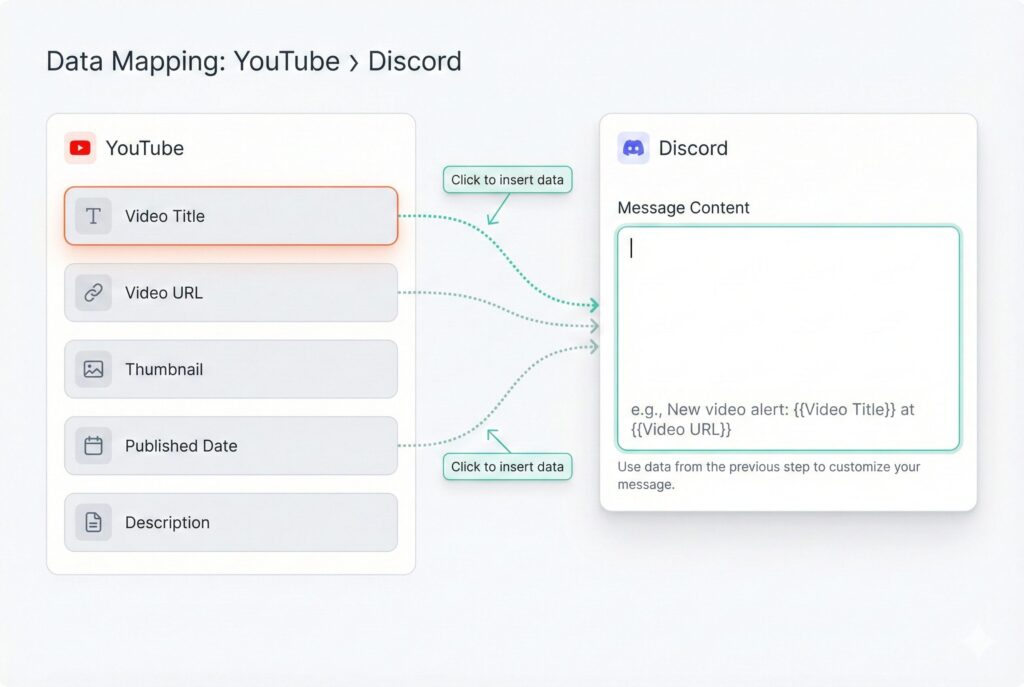
This is where the magic happens. In the message content field, you can pull data directly from your YouTube trigger.
Click in the message field. A panel will appear showing all the data from your YouTube module — video title, URL, description, thumbnail, publish date. Click on “Title” to insert it into your message. Then type something like “just went live” and add the video URL.
Step 5: Test It
Click “Run once” at the bottom left. Make.com will look for your most recent video and run the automation. If everything works, you’ll see green checkmarks on each module.
Check your Discord. Your notification should be there.
Step 6: Activate
Turn on the scheduling toggle at the bottom left. Set how often Make.com should check for new videos. Every fifteen minutes is usually fine for YouTube uploads.
Click “Save” and your automation is live. Congratulations — you just built your first automation with zero code.
Warning: Don’t set your trigger to check every minute unless you want to burn through your free operations. Every fifteen minutes is plenty for YouTube — your video isn’t going anywhere.
Don’t set your trigger to check every minute unless you want to burn through your free operations. Every fifteen minutes is plenty for YouTube — your video ifn’t going anywhere.
Automation 2: YouTube Upload → Google Sheets Content Tracker
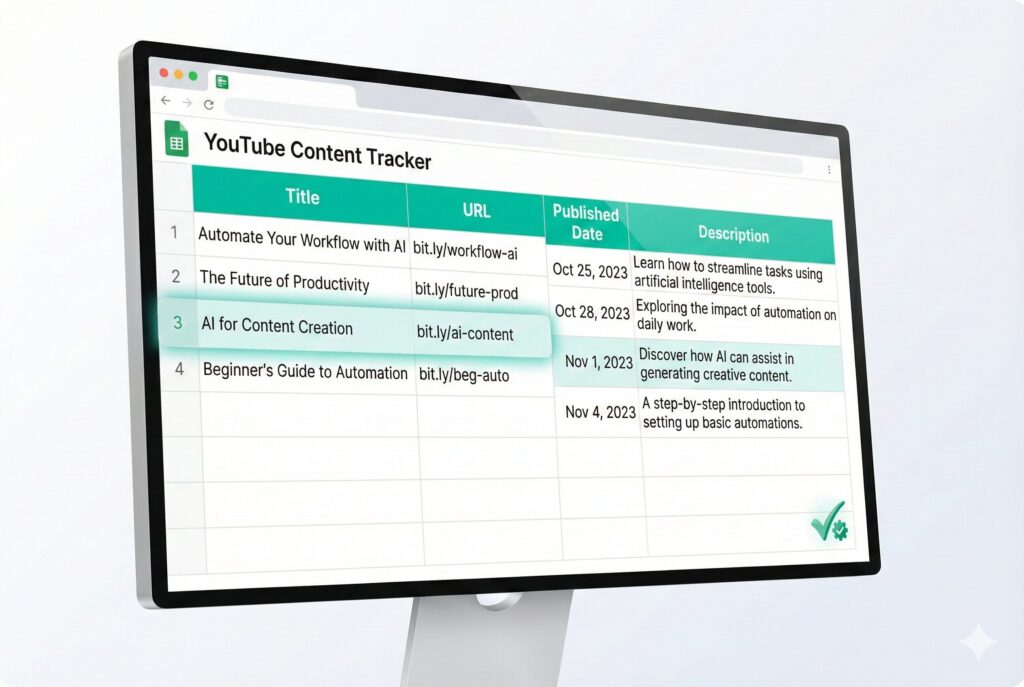
Let’s build a second automation that automatically logs every video you upload into a Google Sheet. This becomes your content library — a searchable database of everything you’ve created.
The process is almost identical to what we just did.
Quick Build Steps
- Create a new scenario
- Add the YouTube “Watch Videos” trigger (you can reuse your existing connection)
- Search for “Google Sheets” and select “Add a Row”
- Connect your Google account if you haven’t already
- Select your spreadsheet (create one called “Content Tracker” with headers: Title, URL, Published Date, Description)
- Map the data — Title to Title column, URL to URL column, etc.
- Test by clicking “Run once” and checking your Google Sheet
- Activate the scenario
Two automations. Twenty minutes total. Both running automatically forever.
What’s Possible Once You Get Comfortable
Now that you understand the basics, here’s what becomes possible as you build more complex workflows.
Make.com supports branching logic — if this happens, then do that. You can filter data so you only process what you need. And it connects to over 1,500 apps — Notion, Airtable, Slack, email providers, social media platforms, everything.
I have one automation that takes my content calendar from Google Sheets, creates pages in Notion, schedules draft social posts, and updates my tracking — all automatically when I add a new row. That took about thirty minutes to build, but it saves hours every week.
And I built it using exactly the same skills you just learned: triggers, actions, data mapping.
Key Stat:
Make.com connects to over 1,500 apps. Once you master the basic workflow structure, you can automate connections between almost any tools you use.
Real Pricing Breakdown & Common Mistakes
Let’s Talk Pricing Honestly
The free tier gives you 1,000 operations per month. Our YouTube to Discord automation uses two operations per run — one for the trigger, one for the action.
If you upload three videos per week, that’s about 24 operations per month from this one automation. Add the Google Sheets automation and you’re still under 50 operations per month. Plenty of headroom.
If you start building more automations and run out, the Core plan costs $9 per month for 10,000 operations. That’s usually enough for solo creators running 5-10 active scenarios.
Three Mistakes That Drain Your Operations
Mistake #1: Running Scenarios Too Frequently
If you set your YouTube trigger to check every minute instead of every fifteen minutes, you’ll use operations 96 times per day instead of 96 times per month. That drains your free tier in about ten days.
For most YouTube automations, checking every fifteen minutes is plenty. Your video isn’t time-sensitive to the minute.
Mistake #2: Not Using Filters
Let’s say you only want to send Discord notifications for videos with certain keywords in the title. You can add a filter between modules to stop the automation if conditions aren’t met.
Without filters, you process everything — even data you don’t need. Filters save operations by stopping the workflow early when conditions aren’t met.
Mistake #3: Starting Too Complex
I’ve seen people try to build a ten-step automation as their first project. They get frustrated and give up.
Start with two steps. Get it working. Then add complexity. The automations we built today are simple on purpose — they work, they save time, and they teach you the fundamentals you need for everything else.
Reality Check: You don’t need twenty automations to see value. Two well-built automations that save you an hour per week are infinitely more valuable than ten broken ones.
What You’ve Learned
Here’s what you accomplished today:
- You understand why Make.com is 50-70% cheaper than Zapier for equivalent usage
- You learned Make.com terminology without getting lost in jargon
- You built a YouTube to Discord automation that runs automatically
- You created a content tracker that logs every video to Google Sheets
- You know the three mistakes that waste free operations
The skills you learned today — triggers, actions, data mapping — apply to every automation you’ll ever build. Master these basics, and complex workflows become accessible.
For more automation tutorials and honest tool breakdowns — real workflows, no hype — join the newsletter. No weekly spam, just practical guidance when I have something worth sharing.
Frequently Asked Questions
Can I use Make.com for free forever?
Yes, as long as you stay under 1,000 operations per month. For most beginners running 2-3 simple automations, that’s plenty. You only need to upgrade when you start building more complex workflows or checking triggers more frequently.
What happens if I run out of operations mid-month?
Your automations stop running until the next billing cycle, or you can upgrade to a paid plan immediately. Make.com doesn’t charge overage fees — your scenarios simply pause until you have operations available again.
Can I connect Make.com to tools you didn’t mention?
Probably. Make.com supports over 1,500 app integrations including Notion, Airtable, Slack, most email providers, social media platforms, and nearly every major SaaS tool. Search for your tool in the modules list to see if it’s supported.
Is Make.com harder to learn than Zapier?
No. The visual workflow builder actually makes it easier to understand what’s happening in your automations. Zapier’s linear interface can hide complexity, while Make.com shows you the exact flow of data between steps.
How do I know if an automation is worth building?
If a task takes you five minutes and you do it more than once a week, it’s worth automating. Calculate the time: five minutes × four times per month = twenty minutes saved monthly. That’s four hours per year of your life back.